QR Code- Quick Payments
Consolidate all your payment Methods or contact details in a single interface and quickly collect payments faster or share contact with QR Codes.
Quick Scan & Pay Dynamic USSD QR Code System
For Individuals or Commercial Center Payments via Mobile Money Merchant Codes
| THE PROPOSITION FuturaPay proposes a fast QR payment layer that facilitates a Commercial Center’s existing Mobile Money merchant codes/ Mobile Money numbers into customer-ready payment experiences—reducing typing errors, speeding checkout, Tips/Cashback collections and making payment easy. |
Why this matters at Commercial Center checkout
At high-volume checkout points, payment friction creates queues and avoidable errors. Manually entering a merchant number, selecting a payment option and typing an amount can slow the customer and increase the chance of a wrong destination or amount. FuturaPay puts the payment instructions into a scannable QR workflow.
• Faster checkout with fewer manual payment-entry steps.
• Greater accuracy by standardizing payment destination and amount presentation.
• MTN Mobile Money and Orange Money through one consistent workflow.
• Optional amount-specific QR generation and optional tip/cashback field.
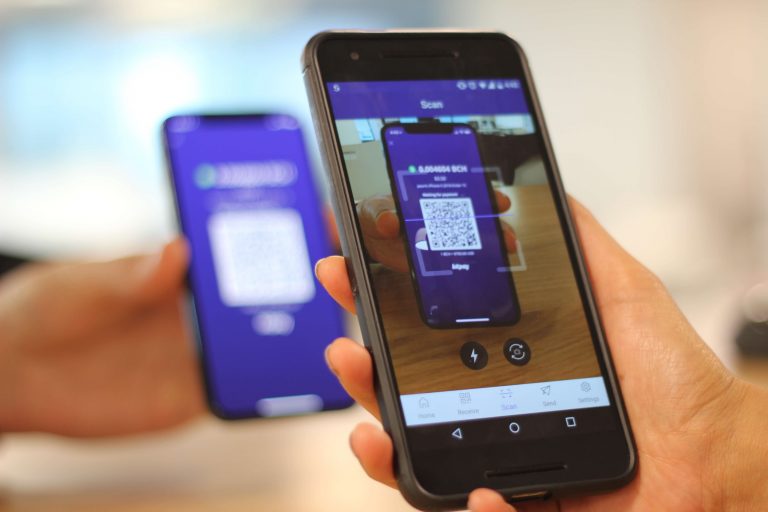
• Simple customer journey: scan, review, pay.
| NO CUSTODY OF MERCHANT FUNDS, TRANSACTION DATA STORAGE ! JUST QR CODE GENERATOR! FuturaPay does not hold, pool or custody Commercial Center funds and no data storage. Payments are directed to the Commercial Center’s own configured MTN Mobile Money or Orange Money merchant destination. |
1. Merchant Setup & QR Configuration
Create controlled payment destinations once, then use them repeatedly at checkout.
Follow the steps below to set up after creating an account on www.futurapay.com
Step 1 — Open the QR Code Generator
From the FuturaPay wallet dashboard, the merchant selects “QR Code Generator.” This provides a dedicated starting point for configuring payment destinations without retyping a merchant number for every payment.
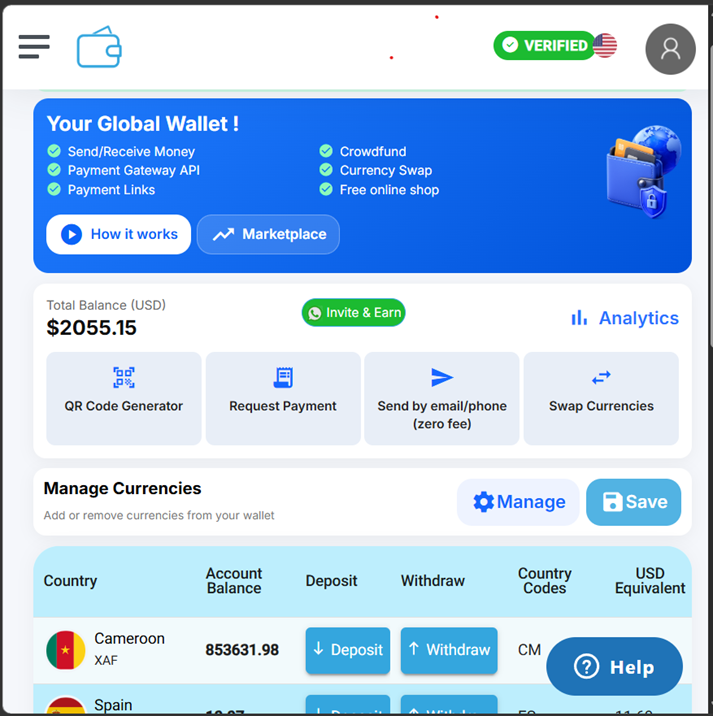
Dashboard example — QR Code Generator entry point
Step 2 — Open QR Codes
The merchant opens the QR Codes area to view configured payment destinations and select “Create new QR Code.”
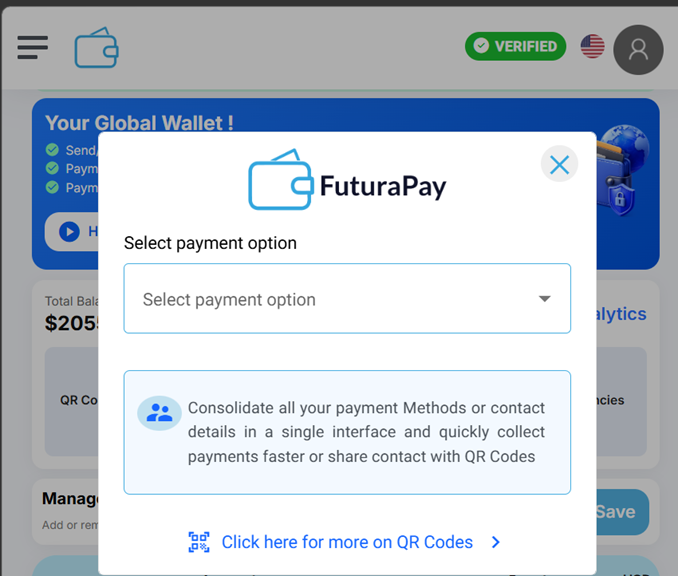
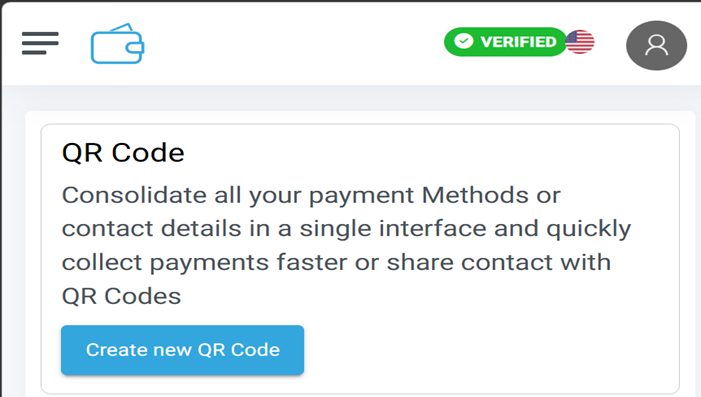
QR Codes area — example list and Create New QR Code action
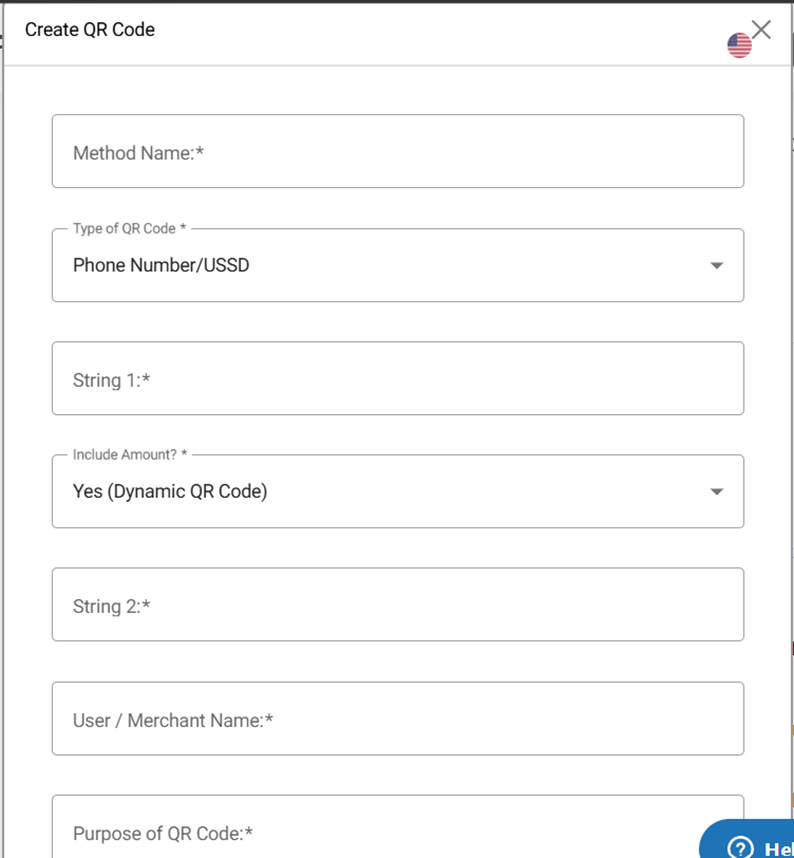
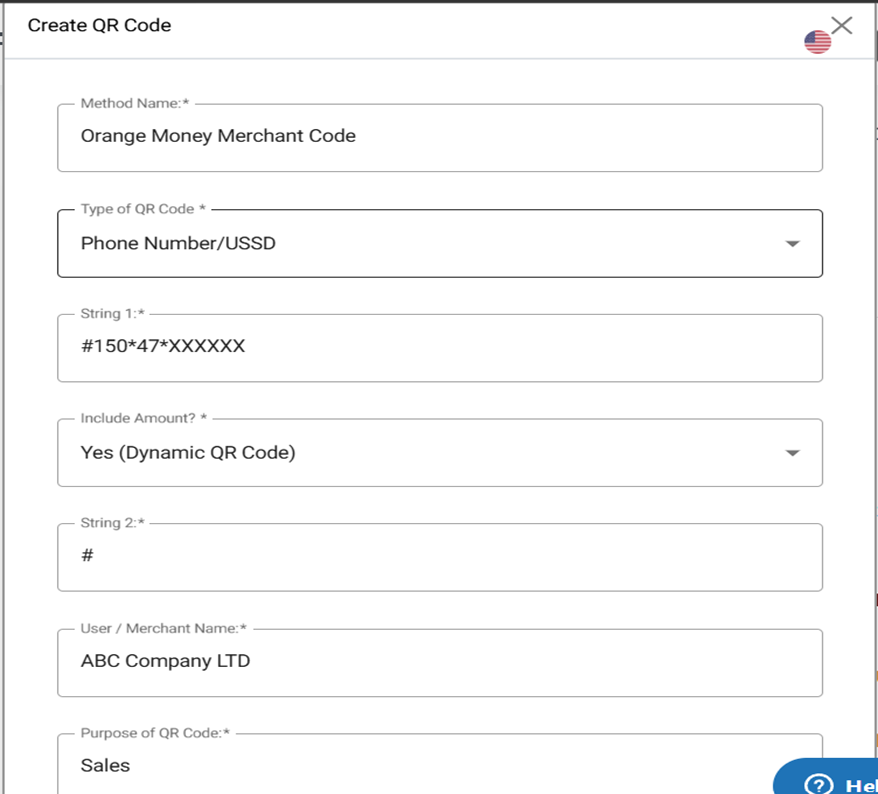
Step 3 — Create a Dynamic USSD QR Code:Enter and confirm the destination
The setup form captures the method name, QR type, merchant/user identifier and purpose. The merchant reviews the destination before activation.
| CONTROL POINT Each configured QR destination should be validated against the Commercial Center’s official merchant code before production use. |
Checkout & Customer Payment Flow
A simple scan-to-pay experience designed for quick and accurate Commercial Center transactions.
Step 4 — Configure MTN Mobile Money and Orange Money
The Commercial Center’s MTN Mobile Money and Orange Money merchant codes/ Mobile Money numbersare configured as separate payment destinations. The confirmation step helps prevent accidental use of an incorrect merchant code.
Example Orange Money : *126*4*XXXXXX#
Example MTN Mobile Money : *126*4*XXXXXX#
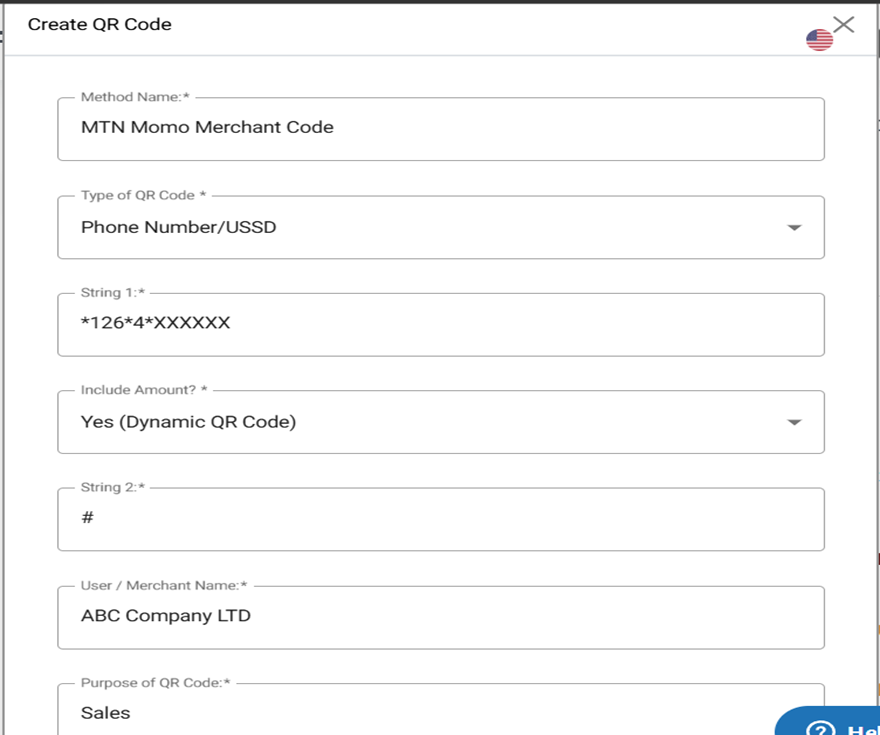
Example configuration screens for MTN Mobile Money and Orange Money merchant codes
Step 5 — Generate the payment-ready QR
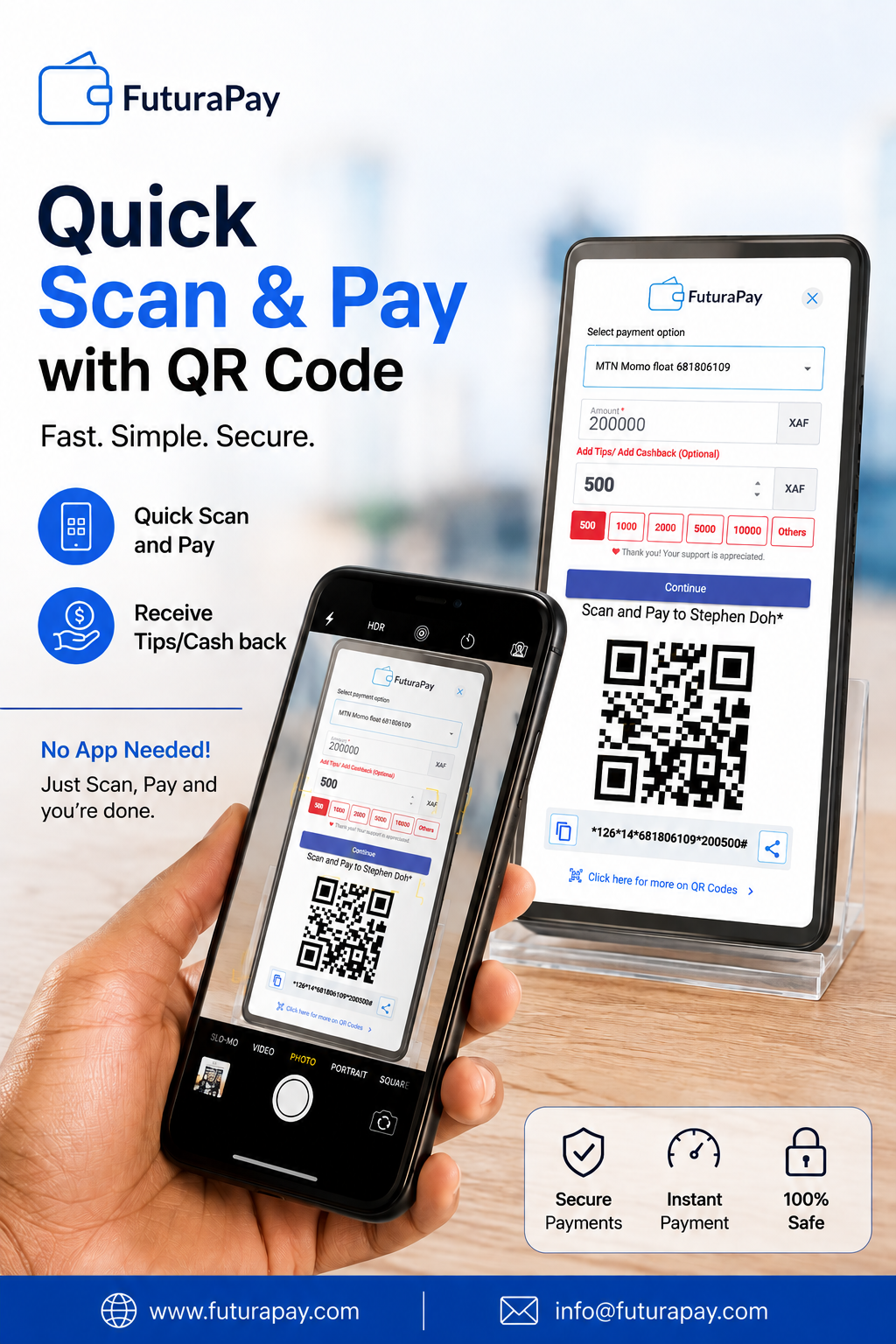
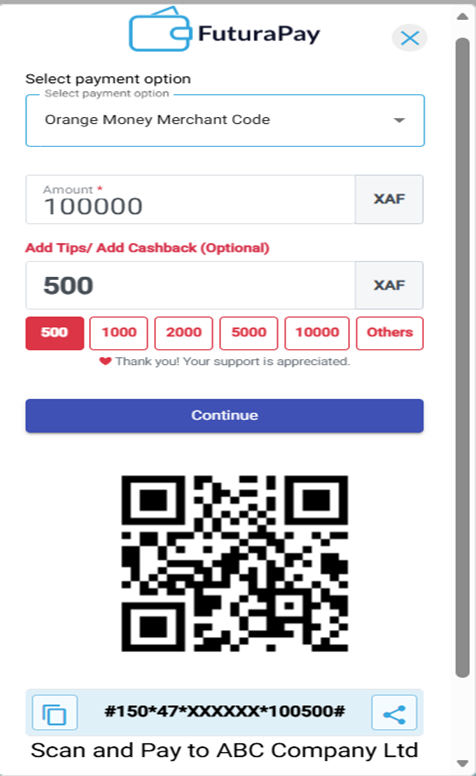
At checkout, the cashier or customer selects the correct merchant method and enters the amount. FuturaPay generates a QR containing the payment instructions, reducing manual typing on the customer’s phone.
Example customer-facing Scan and Pay screen with amount, optional tip/cashback and QR code
| CUSTOMER JOURNEY SCAN → REVIEW → PAY |
3. Business Value & Data Principles
A lightweight payment layer focused on checkout performance without taking custody of Commercial Center funds or data.
Benefits to the Commercial Center
| QUICKER CHECKOUT Fewer manual steps reduce delays. | FEWER ERRORS QR instructions reduce mistyped codes. | ONE EXPERIENCE MTN and Orange follow one flow. |
| EASY TO OPERATE Staff select method and generate QR. | SCALABLE Support multiple codes, branches and counters. | CUSTOMER-FRIENDLY Clear Scan and Pay instructions. |
Data & funds principles
| NO CUSTODY OF MERCHANT FUNDS FuturaPay does not hold, pool or custody Commercial Center funds. The Commercial Center’s MTN Mobile Money / Orange Money merchant destinations remain the payment endpoints. |
| NO STORAGE / RECORDING OF PAYMENT DATA For this QR generator service, FuturaPay does not store or record the payment data entered or displayed for the QR transaction flow. The service is a payment-interface/orchestration layer, not a custodial wallet. |
Accuracy by design
• Reduces transcription of long merchant numbers and payment references.
• Shows the intended payment destination before customer confirmation.
• Supports separate QR destinations for branches, counters or payment methods.
• Can support fixed-amount or transaction-specific QR generation, depending on the agreed workflow.